Configuring a RAG
A RAG deployment grounds model answers in your own documents. Once it's deployed, you configure it from its page in the portal — which models it uses and who can access it. Its vector database is provisioned and managed for you; there's nothing to set up there.
See RAG for document and retrieval APIs, and API Keys for authentication.
Description
Agents and models read the RAG's description to decide when to search this knowledge base, so it should name the domain it covers and what is in it — for example: "Scientific knowledge base containing eleven papers on efficient large language model inference." Set it when you create the RAG, or later with Edit description at the top of the RAG's page.
Models
Under Settings, choose the models the RAG uses. Each can be any model on the platform — in-cluster or external:
- Embedding model — required; turns documents and queries into vectors.
- Generation model is only required for contextual indexing, where it generates document summaries.
- Reranker model — optional; reorders retrieved chunks for relevance.
- OCR model — optional; reads text from images and scanned PDFs. Only models explicitly typed OCR can be selected (currently dots.OCR).
Contextual indexing is enabled by embedder.params.contextual_embeddings: true in the RAG config file. To use it, select a config from the RAG image in the advanced RAG config file field when creating a RAG. Enter the filename without config/ or .yaml. In the deployment API, set configFilePath to the full path, such as config/harrier_oss_structural_config.yaml.
The form allows saving without a generation model, but a contextual indexing config then prevents the RAG from becoming ready. Initialization fails with Contextual embeddings require a generation model. Select a generation model to use that config.
A model only works while it is running. A stopped model is still listed so you can see it exists, but it is marked (stopped) and cannot be selected — start it from the Models page first, then pick it here. External models are always available.
When you create a RAG, each model is filled in from the platform default. A field is left empty instead when its platform default is no longer usable for that role — the model was deleted, is not available to you, is not of the role's type (only the OCR model field checks the type), or is stopped — and you can choose a model yourself. If every model listed for a required role is stopped, the form says so, and Create stays disabled until an embedding model is running.
On an existing RAG, a model that has stopped since it was configured stays selected but is marked (stopped). Start it again from the Models page, or pick another model — a stopped model fails queries that reach it.
When the embedding model runs on the platform, the RAG copies its tokenizer files during startup. The tokenizer determines how text is split into tokens. If the tokenizer is unavailable, the RAG retries with a five-second delay until the copy succeeds. It cannot become ready or answer queries while waiting.
If the embedding model is stopped, a RAG that restarts after a settings change or an automatic update stays in the starting state. Start the embedding model from the Models page, and the RAG finishes starting on its own. Invalid or damaged tokenizer files cause startup to fail instead of retrying. External embedding models do not require this copy or wait.
If you leave Reranker model empty, the RAG uses its normal search ranking and skips reranking. To rerank retrieved chunks, choose a reranker model and use a reranker retrieval config. Plain cosine and BM25 hybrid configs do not rerank, even when a model is selected.
Behavior
Also under Settings, tune how the RAG handles documents and answers searches. Each setting shows Enabled or Disabled beside its name. Select Edit to change them. They come in two groups.
Ingestion
- Auto-delete files without groups requires a group when you add a file or content. A file is deleted when it loses its last group.
- PDF OCR by default reads PDFs with OCR unless the request asks for something else. Requires an OCR model.
Search
- Require group for retrieval returns no results when the search does not name a group.
- Smart temporal search by default reads dates and time references in the search, such as "latest policy" or "what changed last month", and prefers the most time-relevant documents, unless the request asks for something else.
The defaults suit most deployments. Adjust these only for specific needs.
Saving restarts the endpoint. The new settings apply after the restart, so wait until the endpoint is ready before you send requests.
Reranking defaults to 16 candidate chunks and batches of 16. These values can be overridden for a single query through the Context API.
Some endpoints show These settings are unavailable until this endpoint's configuration has been migrated. in place of the switches. Their description and any editable model selections can still be changed as usual. Configuration migration runs automatically during a platform upgrade. If this message remains after the upgrade, ask your platform operator to check the migration job. Restarting the endpoint does not run the migration.
Data sources
A data source connects the RAG to a store where you already keep your files. The RAG reads the files, indexes them, and reads the store again later to pick up changes.
Portal
Open the RAG's Files tab and select Add source.
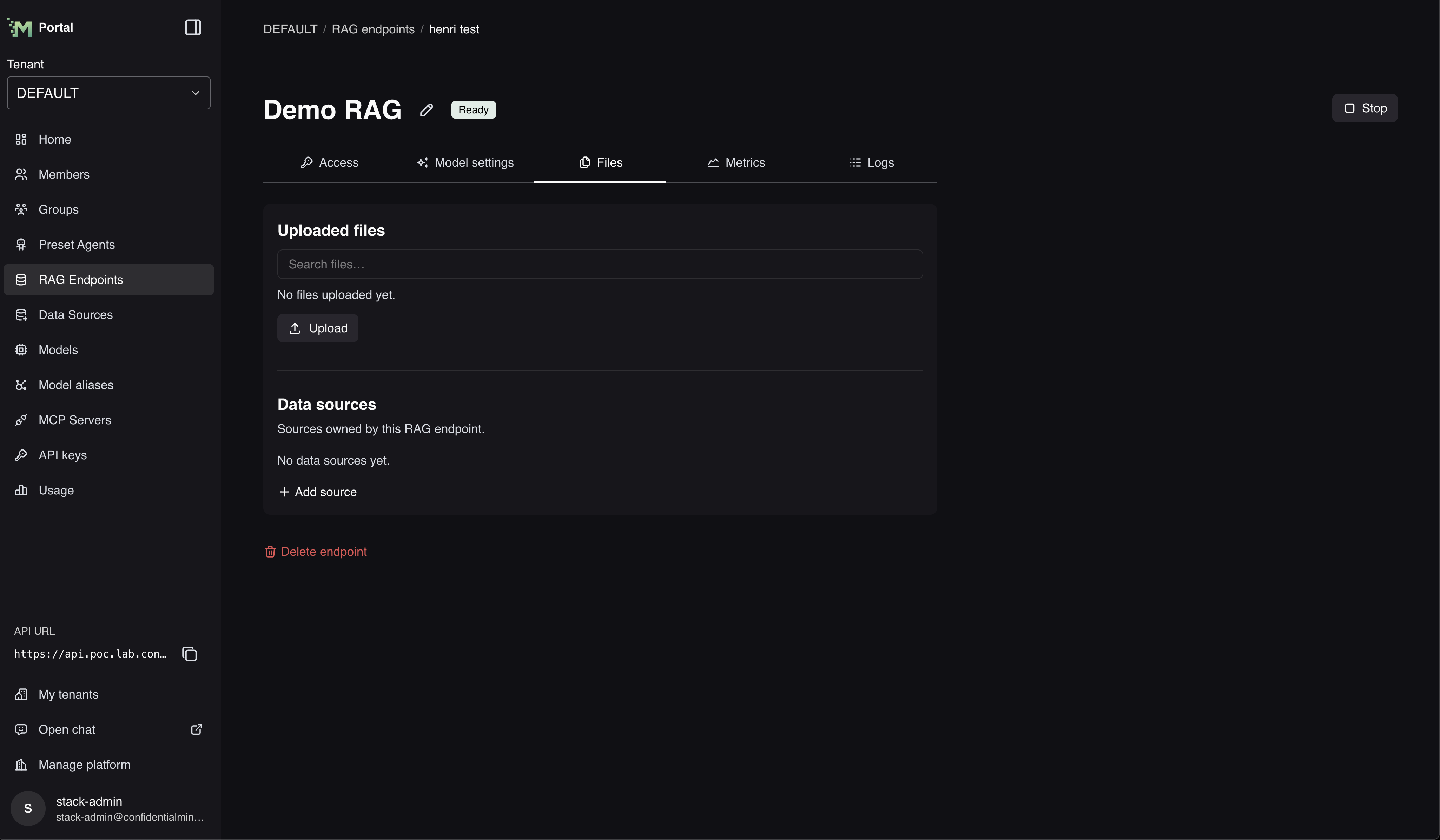
Choose the Provider first — the fields under it change with your choice:
- S3 — Endpoint, Region, Bucket, Access key ID, and Secret access key.
- Azure Blob Storage — Connection string and Container. The account endpoint is taken from the connection string, so you do not type it.
- SMB file share — Server, Share, Port, Require SMB encryption, Username, Password, and Domain. The domain is optional; leave it blank for an account that exists only on the file server.
Every provider also asks for:
- Name — how the source is listed in the portal.
- Prefix — optional. Read only the files whose name starts with this text. Leave it empty to read the whole bucket, container, or share.
- Sync interval — how often the RAG reads the store again. Choose Manual, 10 minutes, 1 hour, 1 day, 7 days, or a custom interval of at least 10 minutes.
Once the source is added, select it in the list to see its settings. An S3 source shows its Endpoint and Bucket; an Azure source shows its Account endpoint and Container.
Access
Portal
Open the RAG's Users tab. It has two sections:
- Administrators — edit, start, stop and delete the endpoint, and manage its data sources.
- Viewers — read the endpoint's configuration and data sources, without changing anything.
Select Add administrator or Add viewer, search by name or email, tick the users and groups you want, then select Add. Each row has a remove button. See Access to one resource for the full steps.
The RAG's Access tab holds its API URL and the calling examples.
Updates
A RAG keeps itself on the platform's recommended version automatically — nothing to do to stay current.
A RAG that uses a platform embedding model splits text with that model's own tokenizer. When a RAG updates to a version that uses this tokenizer, previously indexed documents keep their existing chunks. The RAG does not index them again automatically, so new documents may be split differently. Upload a document again if you want it split with the model's tokenizer.