Deploying a model
Prerequisites
- Model deployment privileges
- Enough GPU VRAM
- A model from Hugging Face
- Some models require the user to sign an agreement to prevent misuse. In these cases, you will need a Huggingface account and token. Documentation for creating access tokens here: https://huggingface.co/docs/hub/en/security-tokens
- Example:
meta-llama/Llama-3.1-8Brequires signing a community license agreement.
Portal
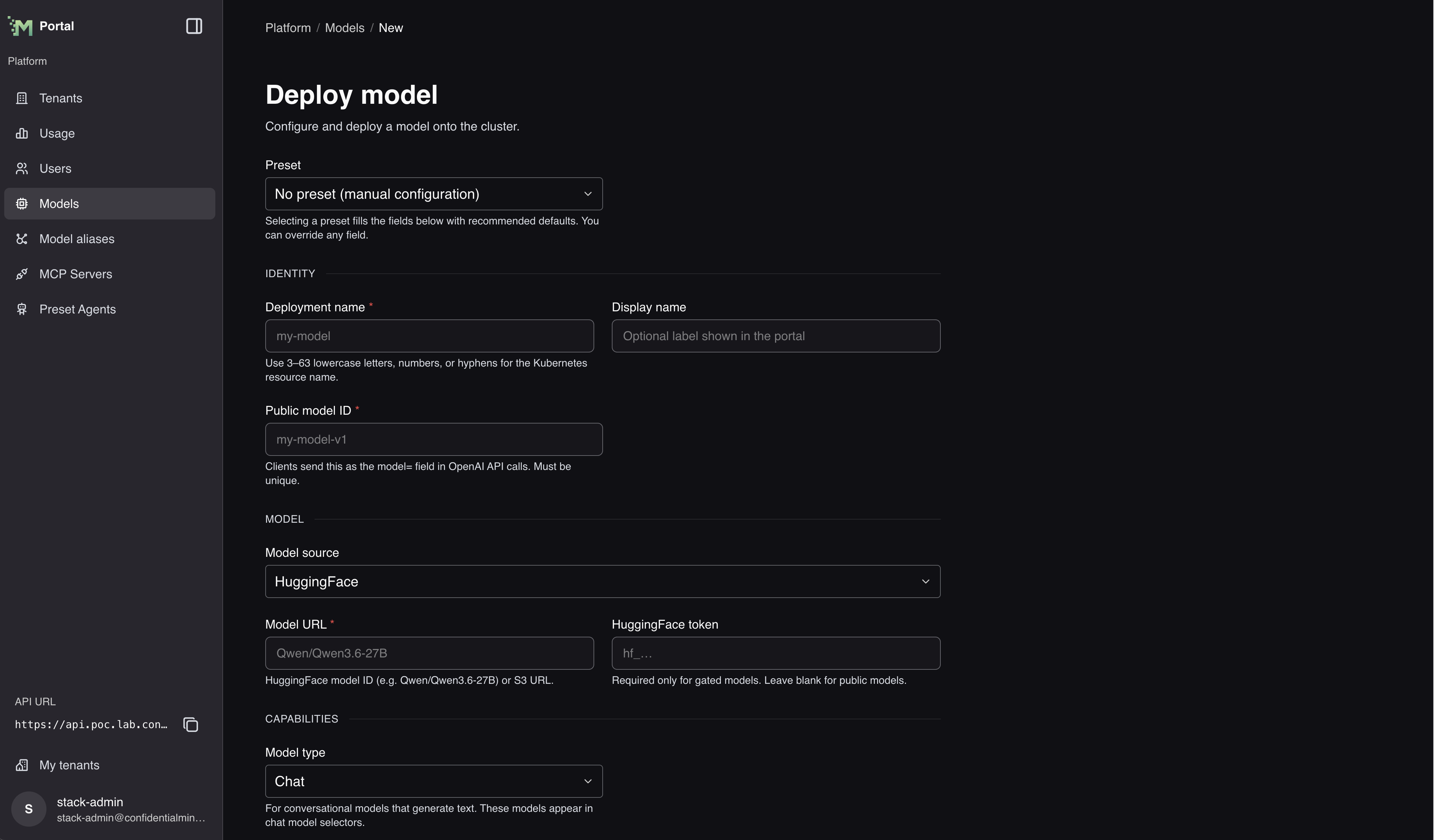
For the Qwen3-0.6B example below, use these portal controls:
- Open Manage platform, then Models, and select Deploy model.
- Keep Preset set to No preset (manual configuration) and Model source set to HuggingFace.
- Enter
Qwen/Qwen3-0.6Bunder Model URL, then fill in Resource name and a unique API model id. - Choose a Node and GPUs with enough free memory. For gated models, enter a HuggingFace token.
- Select Deploy and follow the deployment status. Open Logs to check startup progress.
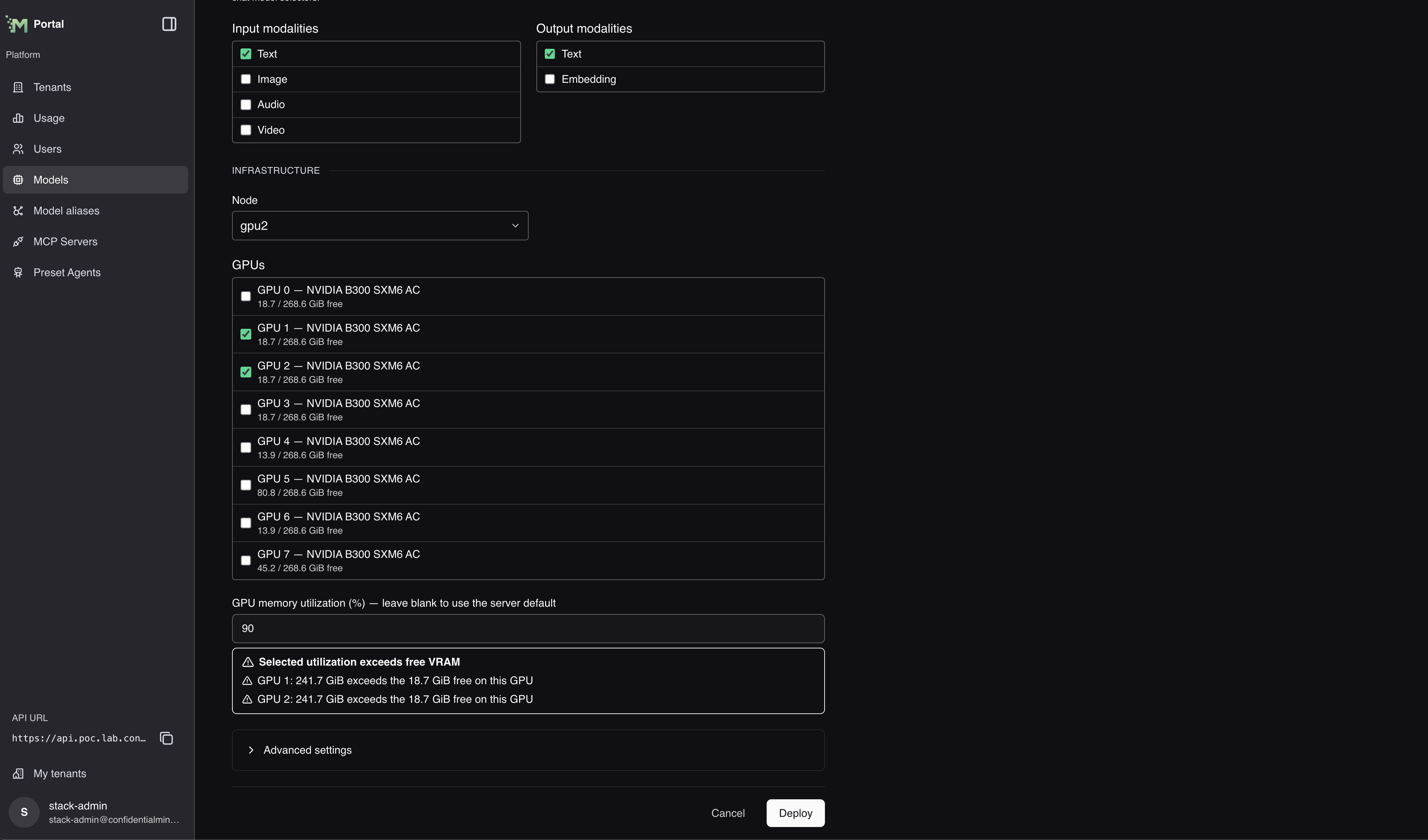
Under Advanced settings, Inference server image takes a complete image reference.
Enter one inference-server argument per line under Arguments.
Use --trust-remote-code only when the model requires it and you trust its code.
Deploying Whisper Large v3
The platform includes a Whisper Large v3 preset for speech-to-text deployments.
- Open
Modelsand selectDeploy model. In the portal,Modelsis under Manage platform. - Select
Whisper Large v3under Preset. - Choose where the preset's model weights come from:
- On a connected cluster, keep
HuggingFace. The preset supplies the model URL. - On an air-gapped cluster, select
Pre-staged local pathand enter the directory that contains the same CTranslate2 Whisper weights. The directory must exist under the configured model cache root on every node where the deployment can run.
- On a connected cluster, keep
- Keep the model type and modalities supplied by the preset. Select
No presetif you need to configure a different model. - Change the resource name, display name, or API model id if needed.
- Select a node and a GPU with at least 4.5 GiB of free VRAM for the default GPU build.
- Select
Deploy modeland wait for the status to becomeDeployed.
The platform manages this preset's runtime image, arguments, environment, tracing, and memory configuration. Those settings are not available on the form. Node and GPU placement remain available.
After the deployment is ready, send audio files to POST /v1/audio/transcriptions. See Model Gateway for the request format.
Stopping and starting a deployment
Platform administrators can stop an operator-managed model deployment without deleting it:
- Open
Modelsand select the deployment. - Select Stop at the top right of the page.
- Wait for the automatically updating status to change to
Stopped.
Stopping removes the model's serving workload, makes its endpoint unavailable, and releases its GPUs. The deployment configuration and cached model remain available so that the model can be started again.
Stopping an embedding model also stops tokenizer delivery. A running RAG endpoint keeps the tokenizer copy it downloaded at startup. A RAG endpoint that restarts while the model is stopped waits for it and cannot become ready. Start the model before restarting or updating RAG endpoints that use it. See Configuring a RAG.
To make the model available again, open its detail page and select Start at the top right. Its status updates as the model starts and returns to Deployed when the endpoint is ready.
These controls are not available in tenant model views and do not apply to external model connections.
Presets with a platform-managed engine
Some presets use runtime configuration supplied by the platform. The preset fixes the model type and modalities. Keep the preset's Hugging Face source on a connected cluster, or select a pre-staged local path for the same model on an air-gapped cluster. Select No preset (manual configuration) to configure a different model.
The portal hides the inference image, arguments, environment variables, and GPU memory utilization for a platform-managed engine, along with the tracing control. The platform sets those values. You can still change the deployment identity, Hugging Face credentials when required, node, and GPU placement.
vLLM Limitations
vLLM is an optimized inference engine for production environments. However, there are known limitations of vLLM to be aware of when choosing models. There is no universal engine that provides optimized inference for production environments for all possible types of machine learning models.
Supported models by vLLM are listed here: https://docs.vllm.ai/en/latest/models/supported_models.html
NB: Sometimes the very latest models from the latest release of vLLM can only be found on the release notes. https://github.com/vllm-project/vllm/releases
- vLLM generally supports autoregressive transformer models with text outputs.
- Diffusion-based models that generate images or videos are not supported.
- Multimodal inputs however are supported for many models.
- While vLLM supports most major model families, some niche models may not be supported.
- Not all major models are supported from day 0. However, model support usually comes within a few weeks.
- The most recent models often contain bugs that may affect performance. Usually these are worked on iteratively by the vLLM community, especially if the model demand is high. Generally it is recommended to reserve the most recent models from production environments until tested.