CM Portal
The CM portal is the platform's web interface. You use it to open Chat, see the models and AI systems shared with you, and create API keys. If you administer a tenant or the platform, you also manage it from here.
Sign in
- Open the CM portal link your administrator provided to you.
- Sign in with your platform account. The CM portal opens on the home page of your tenant.
Your tenant
Everything you see in the CM portal belongs to one tenant: the space your team, department or organization works in. Its models, RAG endpoints, agents and API keys are visible only to its members.
- The sidebar shows the tenant you are in. If you belong to more than one, choose another one in the tenant list at the top of the sidebar. The portal then shows that tenant's resources and stays on the same section.
- My tenants at the bottom of the sidebar lists all tenants you belong to and your role in each. Click a tenant to open it. See Accept an invitation to join a tenant you are invited to.
The home page
The home page asks What would you like to do? and offers a starting point for each:
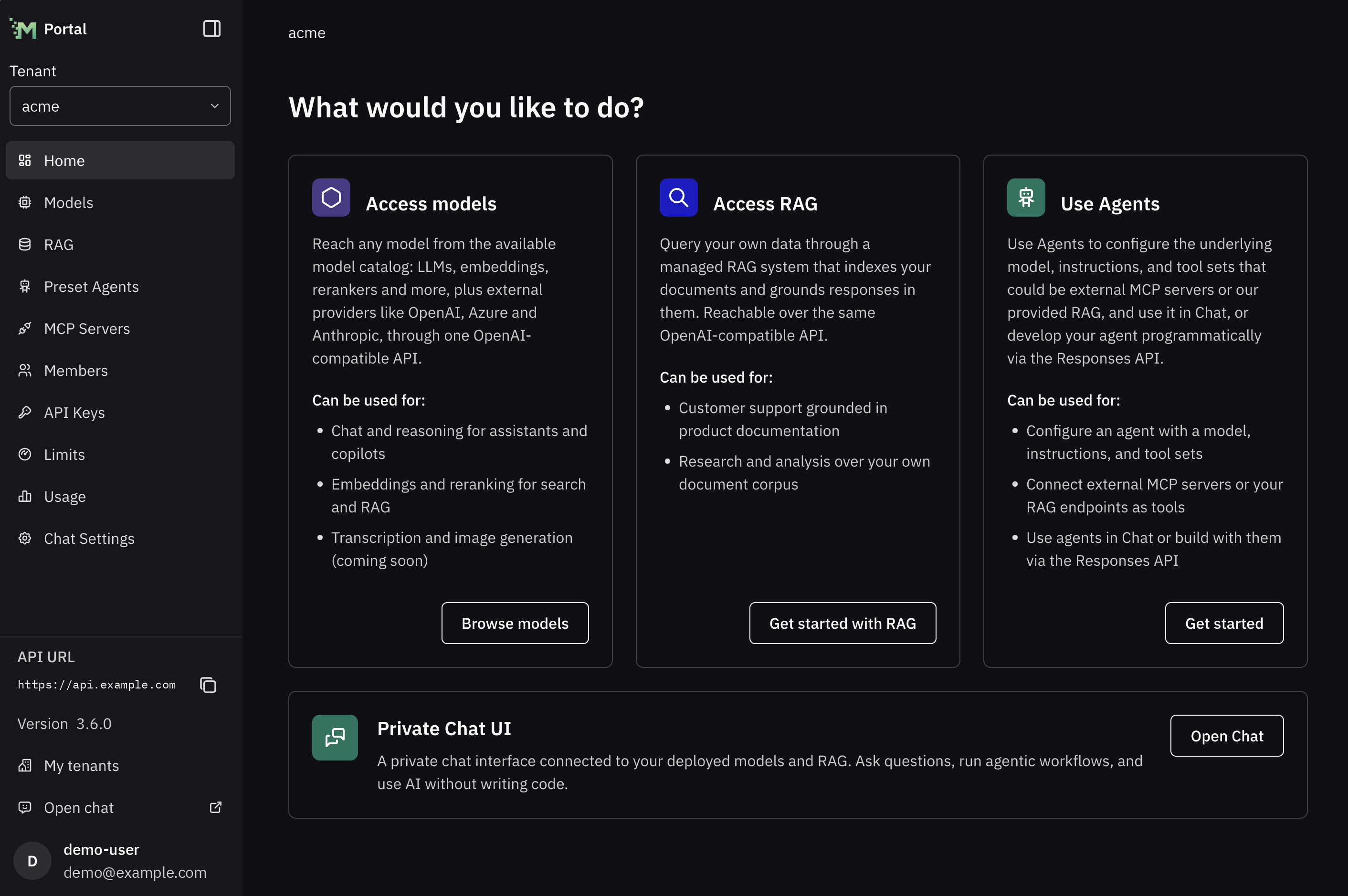
- Access models: browse the models you can use, including external providers. See What are models and model aliases?
- Access RAG: query your own data through a managed RAG system and get answers based on it. See Add knowledge bases.
- Use Agents: use agents that combine a model, instructions and tools. See Chat with a preset agent.
- Private Chat UI: select Open Chat to start a conversation. See Chat.
What you see depends on your role
Your role in the tenant decides which pages you see in the sidebar and what you can do on them.
- A Member uses what is shared with them.
- An Editor also connects external models and MCP servers, creates RAG endpoints and agents, and shares what they administer.
- An Owner can also manage the tenant's members, groups, usage and Chat settings.
See Roles in a tenant for more details.
Where to go next
In every role, you can:
- Chat with the models, knowledge bases and agents shared with you. See Quickstart: chat with your data.
- Call models from your own code with an API key. See Quickstart: your first Model Gateway call.
As an Editor or an Owner, you can also:
- Ground answers in your own documents: create a RAG endpoint and connect its data sources. See Configure a RAG endpoint and Connect a RAG data source.
- Save an agent with a fixed model, instructions and tools. See Create and manage preset agents.
- Give agents and Chat tools from another service. See Connect an MCP server.
- Connect a model that runs outside the platform, such as an Anthropic model. See Use Anthropic models.
- Share what you created with members and groups of the tenant. See Share a resource.
As an Owner, you also manage the tenant's members, groups, usage and Chat settings. Start with Quickstart: manage your tenant.
If you are an administrator of the platform, see Administer the Platform.
The bottom of the sidebar
- My tenants: your account page, with your profile, your password, your tenants, your roles and your invitations. See Manage your account.
- Open chat: opens Chat in a new tab, from the tenant you are in.
- API URL: the address your code uses to call the platform. Select the copy button to copy it. See Build with the AI APIs.
- Your name: opens Settings, where you change the theme or select Log out.