Configure a RAG endpoint
A RAG endpoint is a knowledge base built from your own documents. You put your files in it, and Chat, agents and apps can then look up the answers in them.
Editors and Owners of a tenant create RAG endpoints. Whoever creates one becomes its administrator: they can edit, start, stop, delete and share it. Owners administer every endpoint in the tenant. Members use the endpoints shared with them. See Roles in a tenant.
To call an endpoint from code, see the RAG endpoint API and Create and manage API keys.
Before you start
- You need the Editor or Owner role in the tenant.
- An embedding model must be running on the platform. The endpoint uses it to read your documents and match them to questions. Check the Models page in the portal: if the embedding model is stopped, start it. If there is none, ask your platform admin to deploy one or connect an external one.
1. Create the endpoint
-
In the sidebar, select RAG, then Create endpoint.
-
In Name, enter at least 3 characters, for example
hr-policies. -
In Description, say what the knowledge base covers. Agents and models read it to decide when to search this endpoint, so name the domain and what is in it. For example: "HR policies for employees in Finland, covering leave, travel, expenses and onboarding." You can change it later with Edit description.
-
Keep the Embedding model that is filled in, unless you have a reason to pick another. It lets the endpoint find text that matches the meaning of a question.
noteYou can't change the Embedding model after the endpoint is created.
-
Select Create.
The endpoint's page opens and shows its status:
- Deploying: the endpoint is starting. Wait until it shows Ready.
- Ready: the endpoint is ready to use.
- Degraded: the endpoint works and answers searches, but something isn't right, for example a model it uses was deleted. The page gives the reason. See A selected model is deleted.
- Error: the endpoint can't serve requests. Open the endpoint to see the reason, and check its Logs tab or ask your platform admin. See Good to know.
- Stopping: the endpoint is shutting down after Stop.
- Not deployed: the endpoint is stopped. It keeps its files but doesn't serve requests, and you can't upload files or sync data sources. Select Start at the top of the page to run it again.
If Create stays disabled, no embedding model is running. See Before you start.
2. Optional: change advanced settings
Select Advanced settings on the create form. You can leave everything at its default, and change the models and behavior later in the endpoint's Settings tab. Saving there restarts the endpoint, and the new settings apply after the restart. Chunk size, Contextual embeddings and BM25 keyword search are the exceptions: they can't be changed after the endpoint is created.
Models
All four are optional. To leave one out, choose None.
| Setting | What it does |
|---|---|
| Generation model | Only needed for Contextual embeddings. See Behavior. |
| Reranker model | Reorders search results so the most relevant come first. Leave it empty to skip reranking. |
| OCR (Optical Character Recognition) model | Reads text from images and scanned PDFs. Only OCR models can be picked, and currently only dots.ocr is supported. A platform admin deploys it from a preset: see Deploying dots.ocr. |
| Transcription model | Turns audio files into text so recordings can be indexed. Only transcription models can be picked. |
Each field starts with the platform's default model. It is left empty if that default was deleted, isn't available to you or is stopped. A stopped model is listed as (stopped) and can't be picked: start it from the Models page first. External models are never shown as stopped. Models connected with the Anthropic provider aren't offered, because the endpoint calls models through Chat Completions, which Anthropic connections don't serve. A Claude model connected through an OpenAI-compatible provider is offered.
Behavior
The form shows these settings in three sections: Ingestion, Search and Groups.
| Section | Setting | What it does |
|---|---|---|
| Ingestion | Contextual embeddings | Before each piece of a document is indexed, the generation model reads the text around it and writes a short note on where the piece fits in the document. The note is added to the piece, which improves search but slows indexing. Needs a Generation model. Can't be changed after creation. |
| Ingestion | Chunk size | The most tokens in each piece a document is split into. Leave it empty for 512, or for the embedding model's input limit if that is lower. A larger value stops the endpoint from starting. Can't be changed after creation. |
| Ingestion | PDF OCR by default | Reads every PDF with OCR. Turn it on if your PDFs are scans or have tables or complex layouts. Portal uploads follow it; an API upload can override it with use_ocr. Needs an OCR model. |
| Search | BM25 keyword search | Ranks results by keyword match as well as by meaning. This helps questions with exact names, codes or IDs. Can't be changed after creation. |
| Search | Smart temporal search by default | Understands dates and time words in questions, such as "latest policy" or "what changed last month", and prefers the most time-relevant documents. |
| Groups | Delete files left without a group | Makes every upload name a group. Uploads without one are rejected, so the Files tab doesn't offer uploads while this is on. Removing a file from its last group deletes the file. Deleting a group can delete other files too: see the warning below. |
| Groups | Require group for retrieval | Requests to the Context API that don't name a group return no results. |
With Delete files left without a group on, deleting a group deletes every uploaded file in the endpoint that has no group. That includes files uploaded before you turned the setting on, which may never have had a group. Files from data sources are never deleted this way. Before you turn the setting on, add a group to every uploaded file you want to keep.
Groups are assigned only through the Files API and Content API. Leave both group settings off unless your application assigns groups. To list groups and see their files and storage, use the Groups API.
In the API, set rag_config.chunk_size, rag_config.contextual_embeddings and rag_config.bm25_search when you
create the endpoint.
3. Add your documents
- Open the endpoint and go to the Files tab.
- Drag files onto the upload area, or select Browse files, then select Upload.
- To keep the endpoint in sync with files you already store elsewhere, select Add source and connect an S3 bucket, Azure Blob Storage container or SMB file share. See Connect a RAG data source.
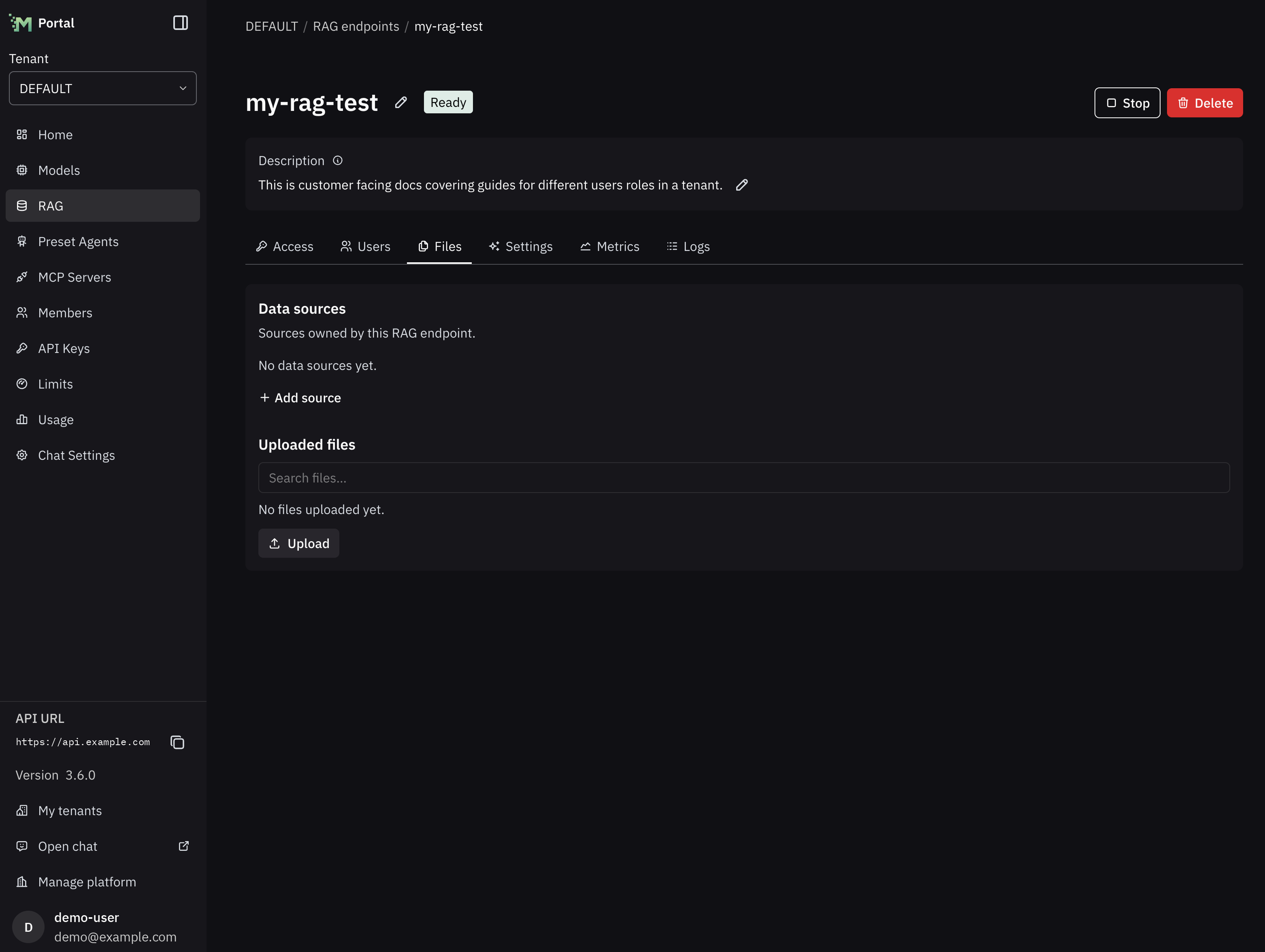
Uploads are available once the endpoint is deployed. See Which files can be indexed.
4. Share it
Go to the Users tab.
- To give the whole tenant access, turn on Share with everyone in this tenant, then select Save.
- To give specific people or groups access, select Add user. Users can search the endpoint and see its settings, but can't change them.
- To let someone manage the endpoint, select Add administrator. Administrators edit, start, stop and delete it, and manage its data sources.
See Share a resource.
5. Use it
In Chat
In Chat, the endpoint appears as a knowledge base to everyone you shared it with. Below the message box, select Knowledge bases and turn it on. The model then searches it while it answers. See Add tools and knowledge bases.
From an app (optional)
- Go to the Access tab and copy the API URL.
- Select Create API key. The key form opens with Read access to this endpoint, which is enough to retrieve context. To upload files too, change it to Write.
- Copy the Upload a file and Retrieve context examples under Getting started, and add your key.
Good to know
- Delete, at the top of the endpoint's page, removes the endpoint and all its files, and can't be undone. To pause an endpoint and keep its files, select Stop instead.
- If the embedding model stops, the endpoint can't start again after a restart or update. Start the model, and the endpoint finishes starting on its own.
- An endpoint in Error keeps retrying and becomes Ready on its own once the cause is fixed.
- If someone replaces the embedding model with a different one under the same name, or the model starts returning vectors of a different size, the endpoint keeps running but can't start the next time it restarts. Put the original model back. To use another embedding model, create a new endpoint and add your documents to it.
- The endpoint stores vectors of at most 2000 numbers. If the embedding model's vectors are larger, a new endpoint asks the model for vectors of 1024 numbers instead. If the model can't return that size, the endpoint doesn't become ready: pick an embedding model with smaller vectors, or one that can return 1024.
- Indexing a very large file can push the endpoint over its memory limit, and that upload fails. If it keeps happening, ask your platform operator to raise the limit.
A selected model is deleted
- Embedding model deleted: the endpoint shows Error and can't index or search.
- Generation, Reranker, OCR or Transcription model deleted: the endpoint shows Degraded. Searches still work, but requests that need that model fail.
The endpoint's page shows the reason under its status banner, for example:
ModelNotFound: generation model "acme/llama-3-70b" is not served by any ModelDeployment or ExternalModel
The OCR model is called vision model in this message. Ignore the banner's first line: it's the same for every cause and can mention failing replicas that aren't failing.
To fix it, deploy a model or connect an external model with the same API model id. The endpoint recovers on its own.
- Embedding model: it must be the same model as before.
- Generation, reranker, OCR or transcription model: you can also choose another model instead. With Contextual embeddings, you can't set the generation model to None.
Updates
A platform upgrade can restart every endpoint once, even when you changed nothing. Endpoints restart a few at a time, so some restart later than others. An endpoint that uses a platform embedding model restarts once more, shortly after that model starts and first reports its context length. An endpoint can't answer queries while it restarts, so wait until it's Ready again.
An endpoint that uses a platform embedding model splits text with that model's own tokenizer. After an update that starts using this tokenizer, documents already indexed keep their pieces and aren't indexed again, so new documents may be split differently. To split a document the new way, upload it again.
More resources
- Metrics tab: requests, latency and tokens for this endpoint.
- Logs tab: the endpoint's recent logs, newest first.
- What are RAG endpoints?
- Connect a RAG data source
- RAG endpoint API
- Share a resource
- Monitor tenant usage: embedding tokens used for indexing
- Set RAG storage quotas