Deploy a model
Prerequisites
- Model deployment privileges
- Enough GPU VRAM
- A model from Hugging Face
- Some models require the user to sign an agreement to prevent misuse. In these cases, you will need a Huggingface account and token. Documentation for creating access tokens here: https://huggingface.co/docs/hub/en/security-tokens
- Example:
meta-llama/Llama-3.1-8Brequires signing a community license agreement.
Portal
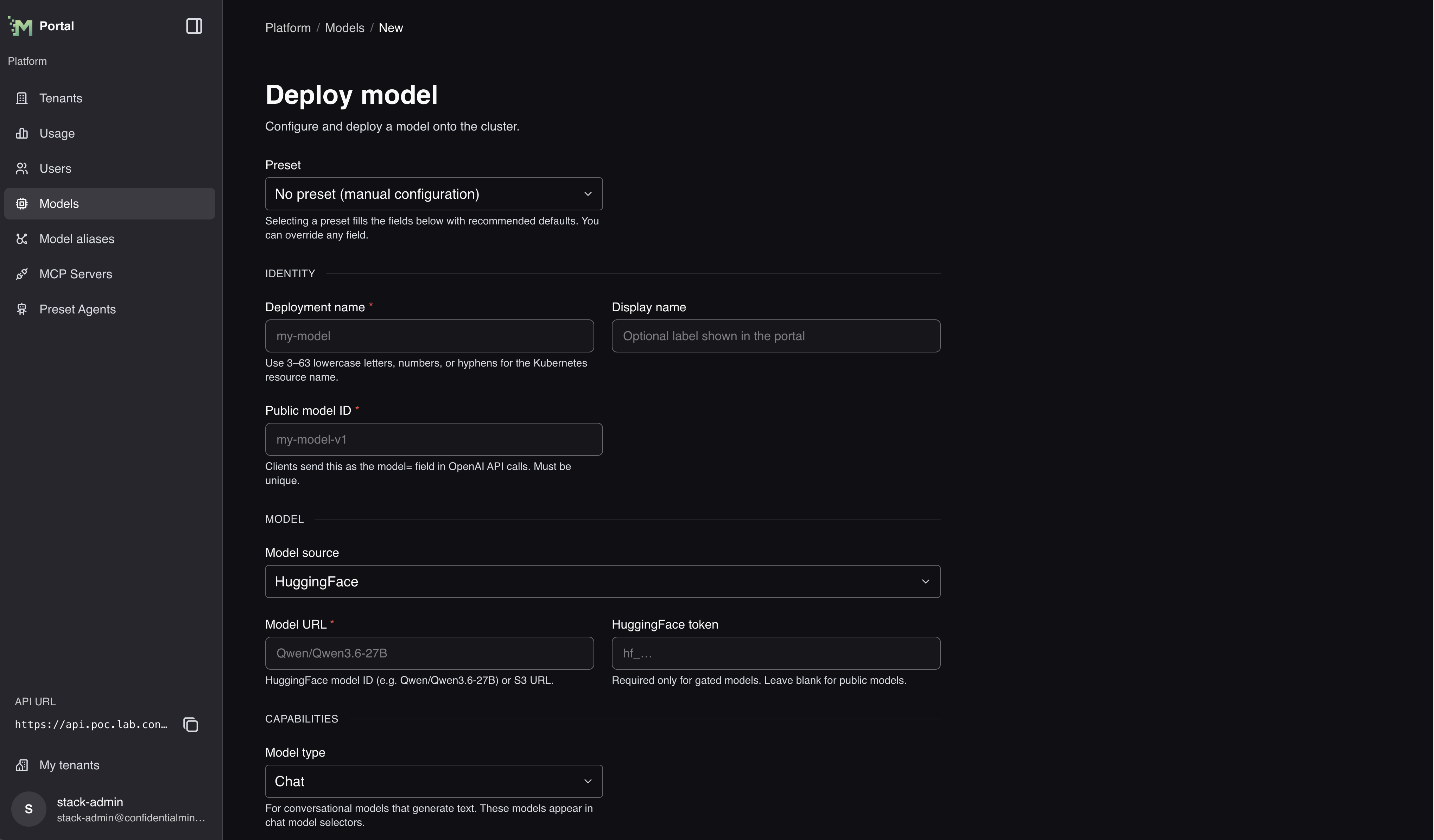
For the Qwen3-0.6B example below, use these portal controls:
- Open Manage platform, then Models, and select Deploy model.
- Keep Preset set to No preset (manual configuration) and Model source set to HuggingFace.
- Enter
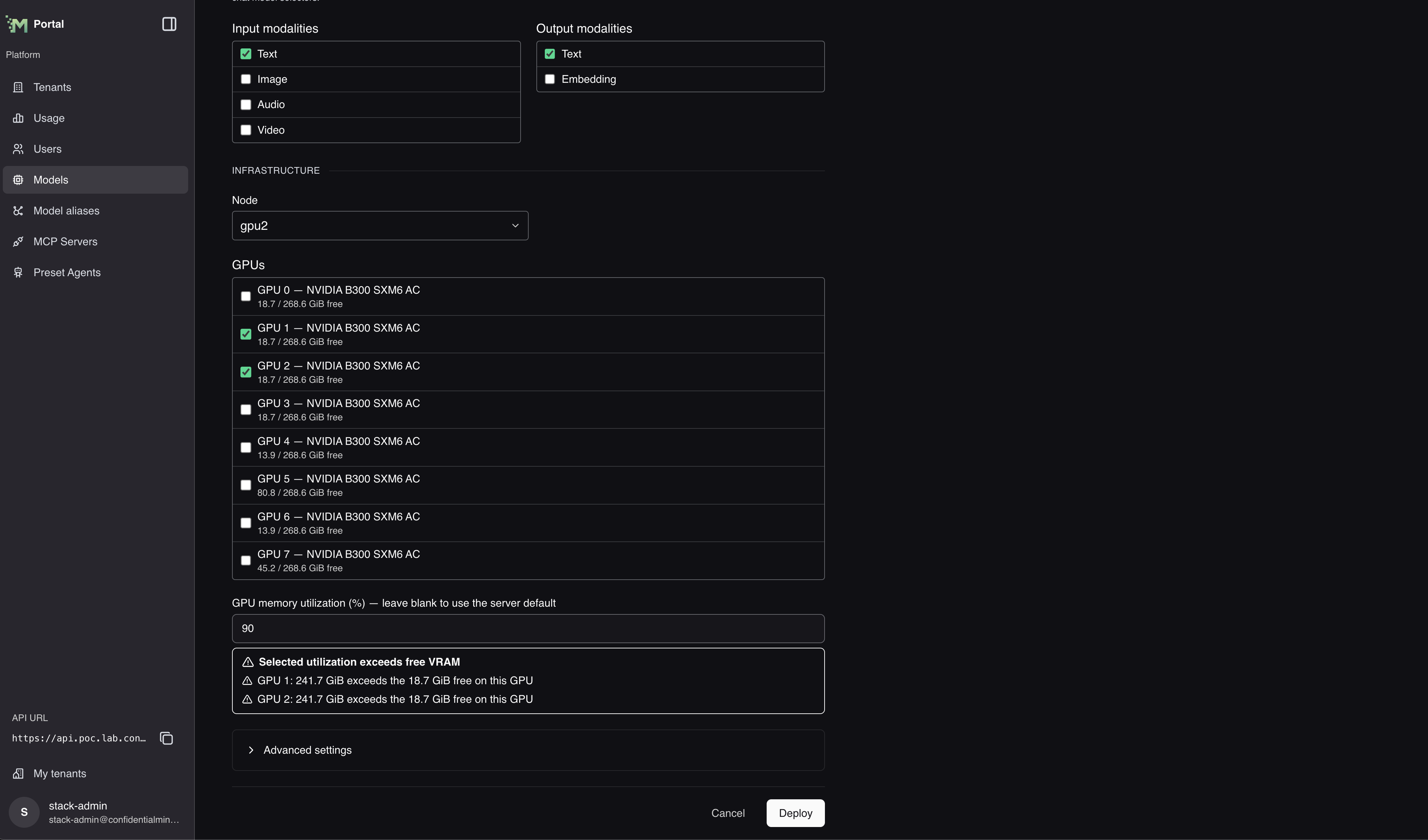
Qwen/Qwen3-0.6Bunder Model URL, then fill in a unique API model id. - Choose a Node and GPUs with enough free memory. Each GPU shows its free memory as a percentage and in GiB. For gated models, enter a HuggingFace token.
- Select Deploy and follow the deployment status. Open Logs to check startup progress.
Under Advanced settings, Inference server image takes a complete image reference.
Enter one inference-server argument per line under Arguments.
Use --trust-remote-code only when the model requires it and you trust its code.
GPU memory utilization
GPU memory utilization (%) is the share of each selected GPU's total memory that one replica of the model takes. Replicas add up: two replicas at 40% take 80% of each selected GPU. Leave the field blank to use the inference server's default.
When the replicas need more memory than a GPU has free, the form shows Selected utilization exceeds free
VRAM. Each GPU line then names the highest percentage per replica that fits, for example
GPU 0: maximum 45% (36 GiB free). Requested: 48 GiB. The warning does not block the deployment. Free memory
changes as other models start and stop, so check it again just before you deploy.
On AMD and Intel GPUs, the form compares memory shares instead. A memory share is the percentage of a GPU that a deployment reserves with GPU memory utilization (%). The platform rejects a deployment when the shares on a GPU would exceed 100%. See Sharing a GPU.
When you select a preset, this field is filled in for you. Most embedding and reranking presets ask for a small share
of the GPU, about 8%. The presets for Nemotron 3 Embed 8B BF16 and Qwen3 Embedding 8B ask for 80%, because these
models need about 16 GB for their weights alone. You can change the value before you deploy.
Changing GPU memory on a running deployment
Open the deployment's settings to change Replicas, GPUs or GPU memory utilization (%). A running model already holds memory on its GPUs, and it releases that memory when the platform redeploys it. The form takes this into account:
- Each GPU in the GPUs list also says how much memory this model uses on it now, when the platform reports it.
- Under GPU memory utilization (%), each selected GPU shows the estimated maximum share per replica and the memory available after the redeploy: its free memory plus what this model uses on it now. If the platform has no usage report for this model on a GPU, the estimate uses only the free memory.
- If the requested memory is more than that estimate, the form shows Requested memory exceeds the replacement estimate. As on the deploy form, the warning does not block the save.
- When the cluster reports live GPU usage, two bars show each selected GPU Now and After
redeploying. They split the memory between other deployments, other GPU use that no deployment reports,
and this model. The legend shows the model's request as replicas × share, for example
This model after redeploying: 2 × 40% = 64 GiB. On AMD and Intel GPUs, the bars show measured memory, but the platform accepts or rejects the change by memory shares. While a model starts or stops, the two can differ.
The estimate comes from the latest usage measurement and is not a guarantee. Other workloads can take memory before the model starts again.
On AMD and Intel GPUs, the form checks memory shares instead of the estimate. Each selected GPU shows the memory share that the other running deployments leave free. The deployment's own share is left out, because the new value replaces it. When the value does not fit and the save would add to the shares on the GPU, the form shows Memory shares on a selected GPU exceed 100%. The platform rejects this deployment. A save that adds to the shares is a new node or GPU, a larger GPU memory utilization (%) or more Replicas. Other saves are accepted even on a GPU that is already over 100%, and the form says so. See Sharing a GPU.
CPU and memory
Under Advanced settings, CPU and memory sets what the model server gets on its node: CPU request, CPU limit, Memory request and Memory limit. A request is reserved for the model server, which only starts on a node with that much free. A limit is the most it may use. A model server that goes over its memory limit is restarted.
Enter CPU in cores, such as 2 or 500m, and memory with a unit, such as 16Gi or 512Mi. Leave a field
blank to use the serving runtime's value, which the form shows under each field. Changing the hardware or
preset clears the fields, because values that fit one runtime can be too large for another.
The platform rejects a deployment where a request is above its limit, counting the runtime's values for the
fields you left blank, for example the memory request 8Gi is above its limit 4Gi.
Changing CPU and memory on a running deployment
Open the deployment's settings and change the four fields under Runtime. Saving restarts the model server. The deployment page lists the values the deployment sets under CPU and memory, or Default when it uses the runtime's.
Deploying Whisper Large v3
The platform includes a Whisper Large v3 preset for speech-to-text deployments.
- Open
Modelsand selectDeploy model. In the portal,Modelsis under Manage platform. - Select
Whisper Large v3under Preset. - Choose where the preset's model weights come from:
- On a connected cluster, keep
HuggingFace. The preset supplies the model URL. - On an air-gapped cluster, select
Pre-staged local pathand enter the directory that contains the same CTranslate2 Whisper weights. The directory must exist under the configured model cache root on every node where the deployment can run.
- On a connected cluster, keep
- Keep the model type and modalities supplied by the preset. Select
No presetif you need to configure a different model. - Change the display name or API model id if needed.
- Select a node and an NVIDIA GPU with at least 4.5 GiB of free VRAM. This preset runs only on an NVIDIA GPU.
- Select
Deploy modeland wait for the status to becomeDeployed.
The platform manages this preset's runtime image, arguments, environment, tracing, and GPU memory configuration. Those settings are not available on the form. Node and GPU placement remain available, and so do the CPU and memory fields under Advanced settings.
After the deployment is ready, send audio files to POST /v1/audio/transcriptions. See Model Gateway for the request format.
This model always answers with JSON (json, text or verbose_json) and does not produce the subtitle formats srt and vtt.
Deploying an 8B embedding model
The platform includes presets for two large embedding models: Nemotron 3 Embed 8B BF16 and Qwen3 Embedding 8B.
Select one under Preset on the Deploy model form. The preset fills in the model URL, the API model id and the
inference server arguments. Both presets run only on an NVIDIA GPU.
Both models return vectors of 1024 numbers. A RAG endpoint that uses one of them stores vectors of that size, and it keeps the size it recorded the first time it started. See Configure a RAG endpoint.
A request to POST /v1/embeddings can ask for another size with the dimensions field. Nemotron 3 Embed 8B BF16
accepts 1024, 2048 and 4096. Qwen3 Embedding 8B accepts any size up to 4096.
Both presets accept up to 32768 tokens in one request.
Stopping and starting a deployment
Platform administrators can stop an operator-managed model deployment without deleting it:
- Open
Modelsand select the deployment. - Select Stop at the top right of the page.
- Wait for the automatically updating status to change to
Stopped.
Stopping removes the model's serving workload and makes its endpoint unavailable. The deployment configuration and cached model weights remain available for restart.
Stopping an embedding model also stops tokenizer delivery. A running RAG endpoint keeps the tokenizer copy it downloaded at startup. A RAG endpoint that restarts while the model is stopped waits for it and cannot become ready. Start the model before restarting or updating RAG endpoints that use it. See Configure a RAG endpoint.
Replacing an embedding model is different from stopping it. If you delete an embedding model and deploy a different model under the same public model ID, RAG endpoints that indexed documents with the old model cannot become ready again, even after a restart. Their stored documents can only be read by the model that made them. See Configure a RAG endpoint.
Deleting a model also changes the state of the RAG endpoints that use it. An endpoint that uses it as its embedding model shows Error, even if it was answering searches until then, because it can no longer index or search its documents. An endpoint that uses it for generation, reranking or OCR shows Degraded and keeps answering searches. Each endpoint's page names the model it is missing. Deploy a model with the same API model id, and the endpoints pick it up on their own. For an embedding model it must be the same model as before. See Configure a RAG endpoint.
To make the model available again, open its detail page and select Start at the top right. Its status updates as the model starts and returns to Deployed when the endpoint is ready.
A stopped deployment is hidden on the Models page. Select Show stopped models above the list to see it, then open it and select Start. If every deployment is stopped, the list says so and points you to the same setting.
These controls are not available in tenant model views and do not apply to external model connections.
Presets with a platform-managed engine
Some presets use runtime configuration supplied by the platform. The preset fixes the model type and modalities. Keep the preset's Hugging Face source on a connected cluster, or select a pre-staged local path for the same model on an air-gapped cluster. Select No preset (manual configuration) to configure a different model.
For a preset with a platform-managed engine, the portal hides the inference image, arguments, environment variables, and GPU memory utilization, along with the tracing control. The platform sets those values. You can still change the deployment identity, Hugging Face credentials when required, node, GPU placement, and the CPU and memory fields under Advanced settings.
Deploying on a Tenstorrent node
Before deploying on a Tenstorrent node, make sure your organization has enabled Tenstorrent support. This includes the bundled Tenstorrent vLLM serving runtime. The platform selects the runtime when you choose a Tenstorrent node.
Choose a model supported by the installed Tenstorrent runtime and hardware. Support in another vendor's runtime does not guarantee support on Tenstorrent.
- Open Manage platform, then Models, and select Deploy model.
- Keep Preset set to No preset (manual configuration).
- Enter the model source, API model id, and model capabilities.
- Under Infrastructure, select the Tenstorrent node.
- Complete any required fields and select Deploy.
When you select a node whose accelerators are all Tenstorrent devices:
- The individual GPUs selector and GPU memory utilization setting are hidden. The runtime controls device allocation.
- Advanced settings are hidden. The platform manages the inference server image, arguments, environment variables, and tracing configuration.
- Model identity, source, capabilities, and node placement remain configurable.
If the form blocks deployment, check the message under Node:
- No Tenstorrent runtime is installed: Ask your administrator to confirm that Tenstorrent support is enabled and the platform installation or upgrade has completed. The installed platform version must include the bundled runtime.
- More than one Tenstorrent runtime matches: Ask your administrator to configure one compatible runtime profile.
- The selected model preset requires a different accelerator: Select No preset (manual configuration) and check that your model supports Tenstorrent.
Model startup
The model can remain in Deploying while the runtime loads model weights and initializes the devices. This can take several minutes.
Check the deployment status and logs for progress. If the logs report a startup failure, ask your administrator to investigate before retrying the deployment.
Backend model ID
The Backend model ID field appears when you select a Tenstorrent node and use Pre-staged local path or a non-Hugging Face model URL.
Enter the canonical model identifier expected by the runtime. This is normally the
Hugging Face repository name, such as Qwen/Qwen3.6-27B, even when the weights are
stored locally. The warning disappears when you enter a value.
For a Hugging Face repository reference, the platform derives this identifier from the model URL, and the field stays hidden.
Backend model ID identifies the model for the serving runtime. It is separate
from API model id, which clients send in the OpenAI API's model field.
Deploying on an AMD or Intel GPU
Ask your platform administrator to complete the AMD prerequisites or the Intel prerequisites and enable support for that GPU vendor.
Follow the Portal deployment procedure. Under Hardware, select
AMD GPU or Intel GPU. Then select a node and one or more GPUs on that
node. The platform selects the bundled runtime: cm-amd-vllm for AMD and
cm-intel-vllm for Intel. A catalog model offers this hardware only when it
has a variant for it.
Choose a model supported by the runtime and the GPU. When you select
multiple GPUs, the CM portal updates --tensor-parallel-size under Arguments
to match the selected GPU count.
Advanced settings and GPU memory utilization remain configurable. Keep the default inference server image unless you have a compatible alternative built for vLLM and the GPU vendor: ROCm for AMD, XPU for Intel.
The bundled runtime's default arguments set a context limit of 4096 tokens.
A non-empty Arguments field replaces those defaults, including when the
Portal adds the parallelism argument. Include --max-model-len=4096 if you
want to retain that limit.
Leave GPU memory utilization blank to use the server default. The bundled AMD and Intel runtimes default to 90%.
Sharing a GPU
Several deployments can share one GPU of any vendor. On an NVIDIA GPU, the form warns when memory is short but does not block the deployment. On an AMD or Intel GPU, the platform also checks memory shares. Each deployment reserves its GPU memory utilization on each of its GPUs, and the running deployments on a GPU may reserve at most 100% of it together:
- Each replica counts: two replicas at 40% take 80%.
- A deployment without a value counts as the runtime default of 90%.
- A stopped deployment reserves nothing.
The GPU list shows the memory share that the other running deployments leave free on each GPU. When your value does not fit, the CM portal shows a warning under GPU memory utilization. If you deploy anyway, the platform rejects the request with a message such as:
Intel GPU "0000-12-00-0-0xe223" has 40% memory share free; this deployment asks for 50%
The platform checks the shares when you create or start a deployment, move it to other GPUs, or raise its memory share or replica count. To fix a rejected request, lower the value, select another GPU, or stop a deployment that uses the GPU. To leave memory headroom, aim for a combined total of 90% or less.
Changing an existing deployment
Open the deployment's settings to change its Node and GPUs. The CM portal selects the compatible runtime when it can resolve the new placement. Changing the node or clearing the GPU selection clears GPU memory utilization. Enter the value again if you do not want to use the server default. When the new placement uses a different runtime, the platform also replaces Inference server image with that runtime's image, because an image built for one GPU vendor does not run on another. To use your own image instead, enter it under Advanced settings in the same save.
Starting a deployment or changing its running placement requires valid AMD or Intel placement. These checks do not prevent stopping a deployment, lowering its memory share or replica count, or saving unrelated settings. When you edit a deployment, the free share shown for its GPUs leaves out the deployment's own share, because the new value replaces it.
If the form cannot proceed
Check the message under Hardware or Node:
- Select the hardware to run on. Select AMD GPU or Intel GPU.
- Select a node to run on. Select a node from the list.
- Select at least one GPU from the current inventory. Select one or more GPUs from the current list.
- No variant for this model: The selected catalog model does not run on this hardware. Select another model.
- No nodes with this hardware: Ask your administrator to complete the prerequisites for the GPU vendor and enable its support.
- Node inventory unavailable: The platform cannot read the GPU nodes. Try again later.
If the preset and runtime catalogue cannot be loaded, select Retry. The Portal keeps the current runtime selection. Retry before choosing a different runtime; this warning does not block every save.
vLLM Limitations
vLLM is an optimized inference engine for production environments. However, there are known limitations of vLLM to be aware of when choosing models. There is no universal engine that provides optimized inference for production environments for all possible types of machine learning models.
Supported models by vLLM are listed here: https://docs.vllm.ai/en/latest/models/supported_models.html
NB: Sometimes the very latest models from the latest release of vLLM can only be found on the release notes. https://github.com/vllm-project/vllm/releases
- vLLM generally supports autoregressive transformer models with text outputs.
- Diffusion-based models that generate images or videos are not supported.
- Multimodal inputs however are supported for many models.
- While vLLM supports most major model families, some niche models may not be supported.
- Not all major models are supported from day 0. However, model support usually comes within a few weeks.
- The most recent models often contain bugs that may affect performance. Usually these are worked on iteratively by the vLLM community, especially if the model demand is high. Generally it is recommended to reserve the most recent models from production environments until tested.