GPU Resource Management and Model Deployment
Portal
Open Manage platform, then Models to manage deployments. The tenant Models page lists available models. Select By node to see GPU memory and model placement. Colors distinguish deployments, not deployment health.
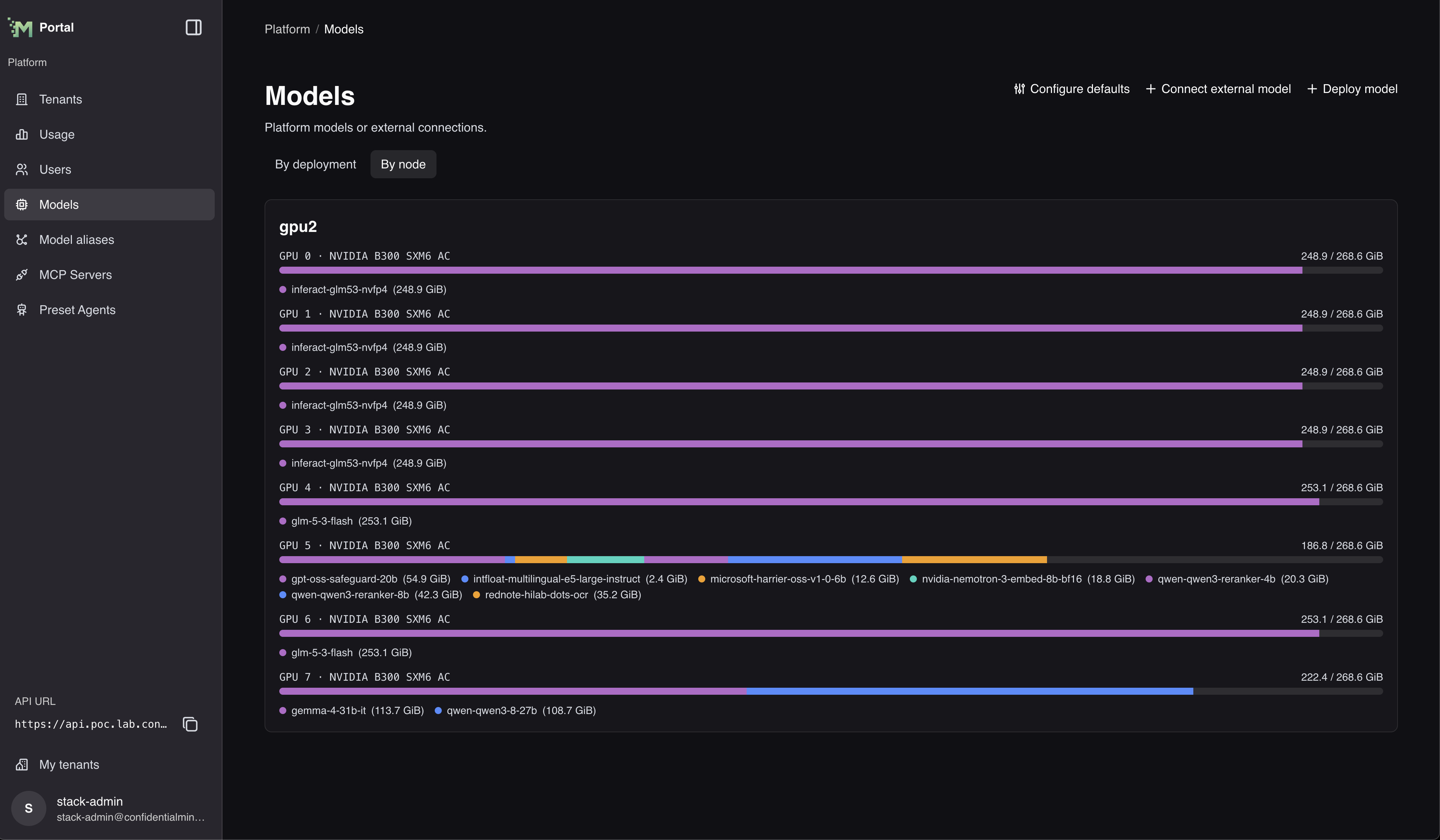
Select Configure defaults on the platform Models page to choose platform-wide defaults: the models new RAG endpoints start with, and the transcription model Chat uses for audio attachments.
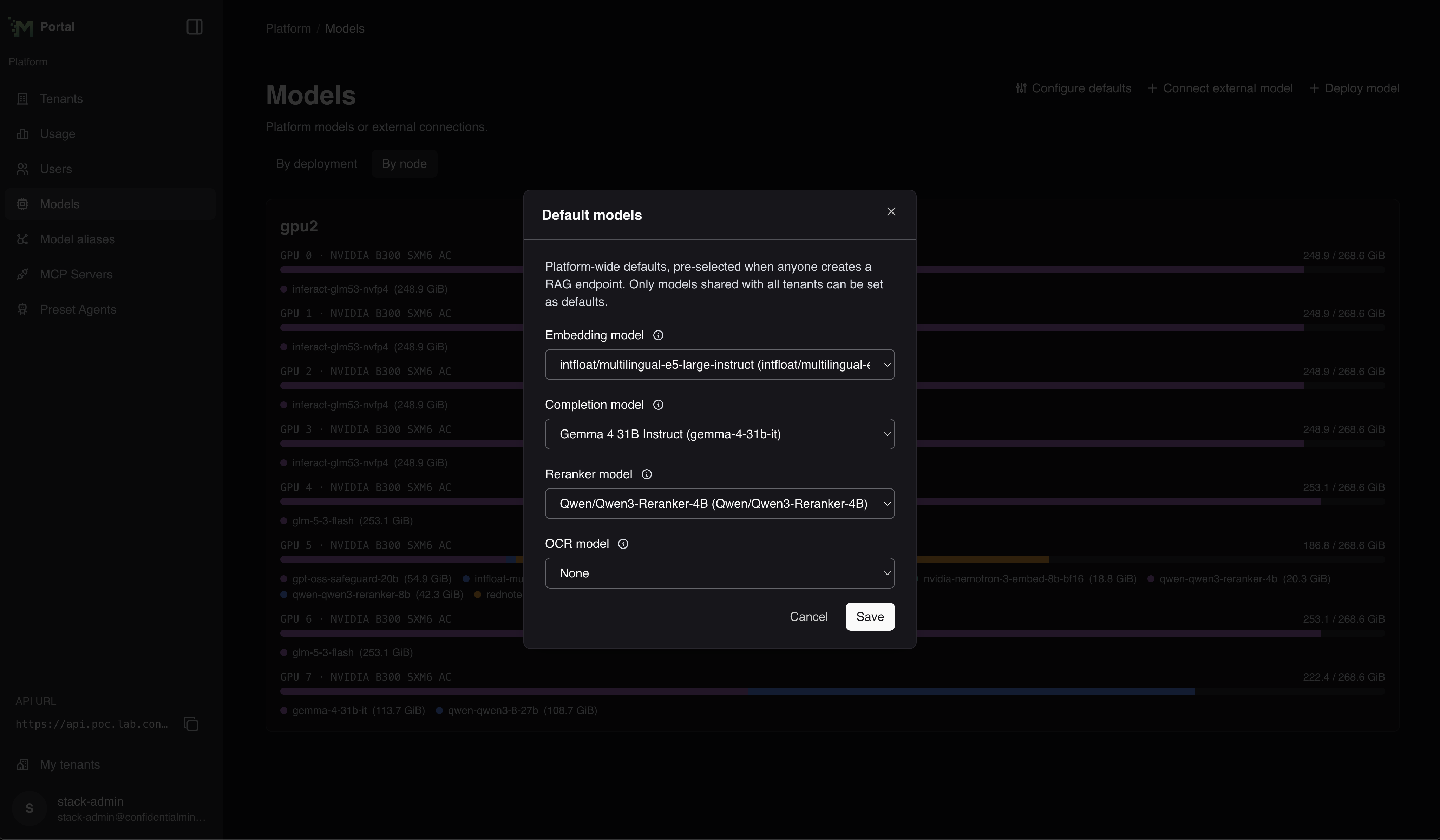 The dialog is titled Default models. Choose an Embedding model, Generation model, Reranker model, OCR model, and Transcription model, then select Save. The generation model is only needed by RAG endpoints that use contextual indexing; leave it empty if none of them do. Only models that are shared with all tenants can be chosen, so a model that is not shared does not appear in these lists.
Embedding query instructions
Set query_prefix through the model deployment or external-model API. The portal has no control
for this setting. Values preserve newlines and trailing spaces. An empty string selects no prefix.
New Hugging Face deployments use the defaults below when the field is omitted, including deployments
created through the portal. Matching uses the model family name regardless of publisher or letter case,
including size, quantization and fine-tune variants. Set an explicit prefix if a variant needs different
text. Other models remain unset.
Existing deployments are not changed. To give one a prefix, update it with query_prefix explicitly.
E5, Qwen3 and Harrier use this retrieval instruction:
Instruct: Given a query, retrieve relevant passages that best answer the query
Query:
Include a trailing space after Query:. The model-specific input formats are:
| Embedding model | Query prefix | Document prefix |
|---|---|---|
| Multilingual E5 instruct | Two-line instruction above | None |
| Qwen3 Embedding | Two-line instruction above | None |
| Harrier OSS v1 | Two-line instruction above | None |
| GTE English v1.5 | Empty string, raw input | None |
| Nemotron 3 Embed | query: | passage: |
To update a model deployment, include query_prefix in the update mask. An empty or omitted value
clears it without restoring the default. Leaving it out of the mask preserves the saved value.
For external models, omission preserves the value and an empty string clears it.
RAG still reads query prefixes from its own configuration, so this setting does not affect searches yet.
Document prefixes such as Nemotron's passage: also stay in RAG configuration.
Before RAG starts using model prefixes in a future release, agree on one query prefix for endpoints
sharing an embedding model.
Troubleshooting
Common Issues
-
Insufficient VRAM:
- Stop an unused operator-managed model deployment to release its GPUs without deleting its configuration
- Reduce model size or precision
- Increase tensor parallelism
- Move other models to different GPUs
-
Deployment Failures:
- Check GPU compatibility with model requirements
- Ensure selected node has sufficient resources
-
Long Startup or Repeated Restarts:
- Large custom models can take up to approximately 90 minutes to load before the startup health check times out
- Check the model server logs to confirm that weight or shard loading is progressing
- If the logs start over after approximately 90 minutes, verify the model arguments, available resources, and model compatibility
-
Performance Issues:
- Adjust batch size for your workload patterns
- Check for CPU bottlenecks in preprocessing
- Consider GPU bus bandwidth limitations when using multiple GPUs