RAG Storage Quotas
Overview
The RAG Storage Quota system allows administrators to control storage capacity for RAG (Retrieval-Augmented Generation) services through the Stack portal. Manage storage limits at the service level, tenant level, and set defaults for new services.
Storage management is available at two levels:
- Tenant Admin Panel (
/tenants→ Storage tab): Manage storage for your tenant's RAG services - Platform Admin Panel (
/tenants/admin→ Storage tab): Manage storage across all tenants (requires platform admin access)
Key Concepts
What Gets Limited
Storage quotas control the total database size for RAG services, including:
- Document content: Raw text and file data
- Vector embeddings: High-dimensional vectors for semantic search (HNSW indexes)
- Metadata: Document and chunk metadata stored as JSON
- Indexes: All database indexes including primary keys and vector indexes
Limit Types
- Service Quota: Limit for a specific RAG service instance
- Tenant Quota: Aggregate limit across all RAG services in a tenant
- Default Quota: Applied automatically to new RAG services in a tenant
How Limits Work
- NULL/Empty: No limit (unlimited storage)
- Zero (0): Storage disabled (all uploads rejected)
- Positive Numbers: Maximum allowed storage in bytes
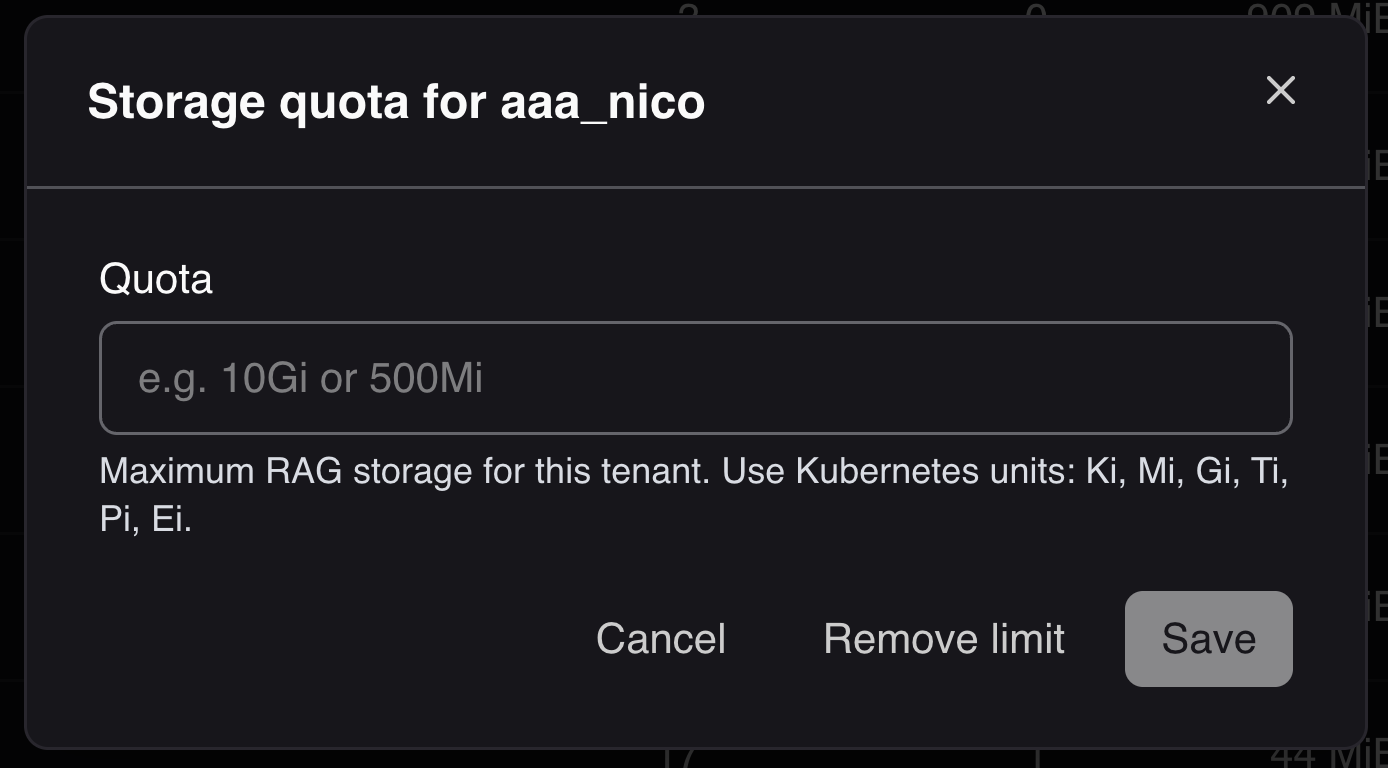
Quota Format: Kubernetes quantity strings (e.g., "10G", "500Mi", "1Ti")
Reference guide for Kubernetes memory resource units
Enforcement
Storage quotas are enforced at upload time:
- Uploads are allowed until usage reaches ≥95% quota
- Large file uploads are denied if estimated to exceed quota
- Both service and tenant quotas apply; strictest limit enforced
- Usage tracked after operations complete
Tenant Storage Management
Accessing Tenant Storage
- Navigate to
/tenantsin the portal - Click the Storage button in the navigation
Tenant storage management interface showing RAG services and quotas
Storage Table Overview
The storage view displays all RAG services in your tenant with the following information:
Table Columns
- Service name: Name of the RAG service
- Service ID: Unique identifier for the service
- Usage: Visual progress bar showing storage utilization percentage
- Used: Actual storage consumed by the service
- Quota: Storage limit for the service (or ∞ for unlimited)
- Actions: Edit and manage service quota
Search and Filter
- Search bar at the top to find specific RAG services by name or ID
- Real-time filtering as you type
Header Information
- Default Quota: Shows the current default quota for new services with an edit icon
- Total Storage: Displays aggregate storage usage across all services
Managing Individual Service Quotas
To set or edit a service quota:
- Find the service in the list
- Click the Edit icon in the Actions column
You can also click directly on the quota rows value to start editing. - Enter the desired quota in the inline editor
- Click the checkmark to save or X to cancel
You can also press Esc to cancel or Enter to save.
Editing a service quota inline
Setting a Default Quota
The default quota applies automatically to all new RAG services created in your tenant.
To set or update the default quota:
- Click the edit icon next to Default Quota in the header
- Enter the desired quota size (e.g., "10G", "500Mi", "1Ti")
- Optionally choose to update existing services to match the new default Enabled by default Allows to unselect to not update specific services if only some services should be patched1
- Click Update
Update default quota dialog with options to apply to existing services
Default Quota Options:
- Leave empty for no default (services start with unlimited storage)
- Set a specific value to automatically limit new services
- Choose whether to apply the new default to existing services
Platform Admin Storage Management
Accessing Platform Storage
- Navigate to
/tenants/adminin the portal - Click the Storage button in the navigation
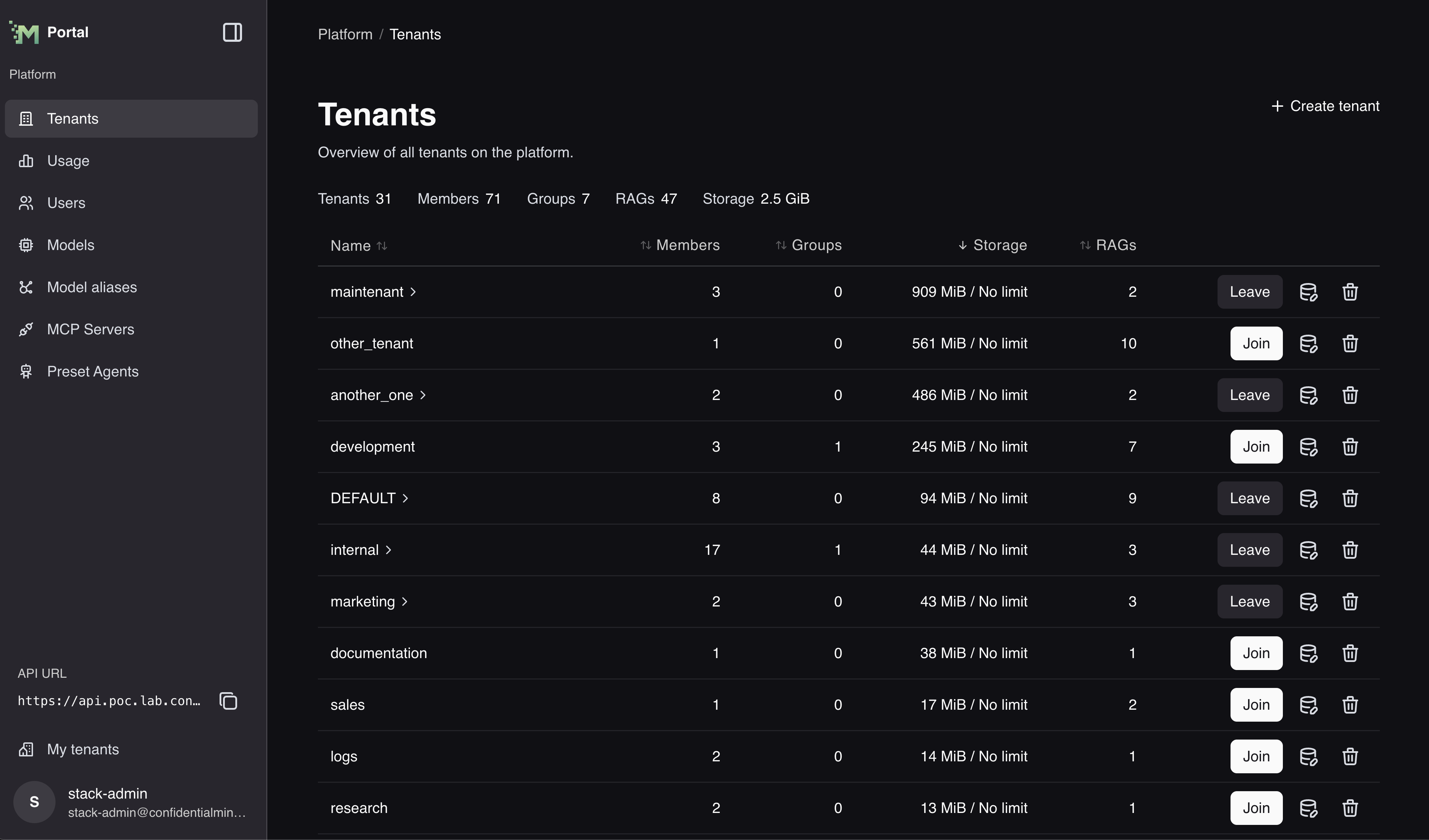
Platform-wide storage management interface showing all tenants
Key Features
Tenant-Level Overview
- View all tenants and their total storage usage
- See aggregate storage across all RAG services per tenant
- Set tenant-wide quotas that apply across all services
Tenant Quota Management
- Set maximum storage limits per tenant
- View how tenant quotas are distributed across services
- Drill down into individual tenant services
Platform-Wide Statistics
- Total storage used across entire platform
- Number of RAG services per tenant
- Storage distribution by tenant
Setting Tenant-Wide Quotas
- Find the tenant in the list
- Click Edit Quota for the tenant
- Enter the tenant-wide limit
- Click Save
Note: Both service-level and tenant-level quotas are enforced. The strictest limit always applies.
Storage in File Management
When uploading files to a RAG service, the file management interface displays your current storage usage in the top-right corner.
File management dialog showing storage usage indicator
Storage Indicator:
- Shows current usage vs. quota (e.g., "8.71Mi / 20Mi (44%)")
- If no quota is configured, displays only current usage
- Updates in real-time as you upload or delete files
When Storage is Full:
If your storage reaches 95% or higher, uploads will be blocked and you'll see a warning banner:
Storage full warning when quota is exceeded
To continue uploading:
- Delete existing files to free up space, or
- Request a quota increase from your tenant administrator
Quota Hierarchy
When both service and tenant quotas are configured:
- Service quota checked first
- Tenant quota checked second
- Strictest limit applies (minimum of both)
Examples:
| Service Quota | Tenant Quota | Effective Limit |
|---|---|---|
| 10GB | 100GB | 10GB (service limit) |
| NULL | 100GB | 100GB (tenant limit) |
| 10GB | NULL | 10GB (service limit) |
| NULL | NULL | Unlimited |
| 0 | 100GB | 0 (disabled) |